Physical Address
304 North Cardinal St.
Dorchester Center, MA 02124
Physical Address
304 North Cardinal St.
Dorchester Center, MA 02124
Helping You Navigate the Digital World
Helping You Navigate the Digital World
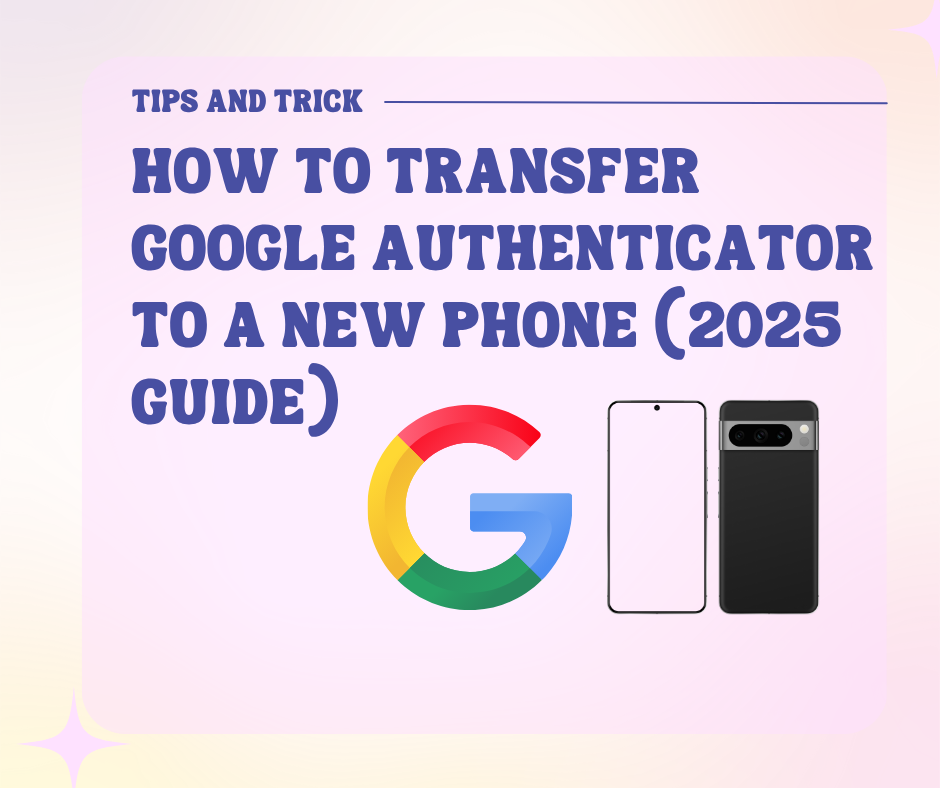
Switching to a new phone and want to keep your 2-Step Verification codes?
Don’t lose access to your accounts — this step-by-step guide will show you exactly how to transfer Google Authenticator to a new phone safely and securely.
Whether you’re using Android or iPhone, this 2025 tutorial has you covered.
✅ What You Need Before You Start
🧠 Note: You must transfer your accounts manually — Google Authenticator doesn’t sync via cloud unless you use the backup feature introduced in 2023.
🧭 How to Transfer Google Authenticator (Android & iPhone)
🔹 Step 1: Install Google Authenticator on Your New Phone
🔹 Step 2: Open Google Authenticator on Your Old Phone
🔹 Step 3: Choose Accounts to Transfer
🔹 Step 4: Scan the QR Code with Your New Phone
✅ That’s it! Your codes should now appear on your new phone.
🔄 What Happens to Your Old Authenticator?
🧩 What If You Lost Your Old Phone?
If you don’t have your old phone, you’ll need to:
For Google account recovery:
👉 https://myaccount.google.com/security
🔒 Pro Tips for Safe Transfer
| Tip | Why It Helps |
| 📁 Save backup codes | Prevents total lockout |
| 🔐 Enable screen lock | Protect your Authenticator app |
| ☁️ Use cloud sync (if available) | As of 2023, cloud sync is available via Google Account |
| 🔄 Remove old Authenticator access | Keep your 2FA codes secure on one trusted device only |
⚠️ Supported Platforms
📌 Summary
Transferring Google Authenticator to a new phone is easy when you follow the proper steps:
✅ Install Authenticator on new device
✅ Use Transfer accounts > Export on old device
✅ Scan QR code with new device
✅ Double-check all 2FA codes work before resetting your old phone
Frequently Asked Questions (FAQs)
Q1: Can I transfer Google Authenticator without my old phone?
A: If you don’t have access to your old phone, you can’t directly transfer the codes. You’ll need to use backup codes or log into each account individually and reset 2FA.
Q2: Does Google Authenticator sync across devices?
A: As of late 2023, Google introduced cloud sync for Authenticator via your Google account. If enabled, your 2FA codes can be recovered on a new device automatically.
Q3: Can I keep Authenticator on both phones?
A: Yes, during transfer the accounts are copied, not moved. However, for security reasons, it’s best to remove the codes from the old phone once verified on the new one.
Q4: What if I see duplicate codes after transfer?
A: You can manually remove the duplicated accounts from the old device using the trash icon or by uninstalling the app.
Q5: Are third-party apps better than Google Authenticator?
A: Apps like Authy offer more features (like multi-device sync and backups), but Google Authenticator is lightweight, secure, and trusted by most platforms.